# Self Hosting
In this guide, we will walk you through the process of setting up a self-hosted environment. Self-hosting allows you to have full control over your applications and data. It's a great way to ensure privacy, control, and customization.
We will cover two main options for setting up your self-hosted environment: using a cloud server or using your desktop. For the cloud server, we will use an AWS EC2 instance. For the desktop, we will use Docker to create a local environment.
Let's get started!
## Setting up Docker Environment
Option 1 - Using Cloud Server
Best way to start is to create EC2 machine on AWS. It must have minimum of 2vCPU and 4GB RAM.
Run the below command to install docker engine.
`curl -fsSL https://get.docker.com | sh -`
---
Option 2 - Using Desktop
#### For Mac
- Download Docker Desktop for Mac from the Docker Hub.
- Double-click the downloaded `.dmg` file and drag the Docker app icon to the Applications folder.
- Open Docker Desktop from the Applications folder. You might be asked to provide your system password to install additional software.
#### For Windows:
- Download Docker Desktop for Windows from the Docker Hub.
- Run the installer and follow the instructions. You might be asked to enable Hyper-V and "Containers" Windows features.
- Open Docker Desktop. You might be asked to log out and log back in, or restart your machine, for changes to take effect.
After installation, you can verify the installation by opening a terminal (Command Prompt on Windows, Terminal app on Mac) and running the command `docker --version`. This should display the installed version of Docker.
---
## Installing Plane
Installing plane is a very easy and minimal step process.
### Prerequisite
- Docker installed and running
- OS with bash scripting enabled (Ubuntu, Linux AMI, macos). Windows systems need to have [gitbash](https://git-scm.com/download/win)
- User context used must have access to docker services. In most cases, use sudo su to switch as root user
- Use the terminal (or gitbash) window to run all the future steps
### Downloading Latest Release
```
mkdir plane-selfhost
cd plane-selfhost
```
#### For *Docker Compose* based setup
```
curl -fsSL -o setup.sh https://github.com/makeplane/plane/releases/latest/download/setup.sh
chmod +x setup.sh
```
#### For *Docker Swarm* based setup
```
curl -fsSL -o setup.sh https://github.com/makeplane/plane/releases/latest/download/swarm.sh
chmod +x setup.sh
```
---
### Proceed with setup
Above steps will set you ready to install and start plane services.
Lets get started by running the `./setup.sh` command.
This will prompt you with the below options.
#### Docker Compose
```bash
Select an Action you want to perform:
1) Install (x86_64)
2) Start
3) Stop
4) Restart
5) Upgrade
6) View Logs
7) Backup Data
8) Exit
Action [2]: 1
```
For the 1st time setup, type "1" as action input.
This will create a folder `plane-app` and will download 2 files inside that
- `docker-compose.yaml`
- `plane.env`
Again the `options [1-8]` will be popped up, and this time hit `8` to exit.
#### Docker Swarm
```bash
Select an Action you want to perform:
1) Deploy Stack
2) Remove Stack
3) View Stack Status
4) Redeploy Stack
5) Upgrade
6) View Logs
7) Exit
Action [3]: 1
```
For the 1st time setup, type "1" as action input.
This will create a create a folder `plane-app` and will download 2 files inside that
- `docker-compose.yaml`
- `plane.env`
Again the `options [1-7]` will be popped up, and this time hit `7` to exit.
---
### Continue with setup - Environment Settings
Before proceeding, we suggest used to review `.env` file and set the values.
Below are the most import keys you must refer to. _You can use any text editor to edit this file_.
> `LISTEN_HTTP_PORT` - This is default set to `80`. Make sure the port you choose to use is not preoccupied. (e.g `LISTEN_HTTP_PORT=8080`)
> `WEB_URL` - This is default set to `http://localhost`. Change this to the FQDN you plan to use along with LISTEN_HTTP_PORT (eg. `https://plane.example.com:8080` or `http://[IP-ADDRESS]:8080`)
> `CORS_ALLOWED_ORIGINS` - This is default set to `http://localhost`. Change this to the FQDN you plan to use along with LISTEN_HTTP_PORT (eg. `https://plane.example.com:8080` or `http://[IP-ADDRESS]:8080`)
There are many other settings you can play with, but we suggest you configure `EMAIL SETTINGS` as it will enable you to invite your teammates onto the platform.
---
### Continue with setup - Start Server (Docker Compose)
Lets again run the `./setup.sh` command. You will again be prompted with the below options. This time select `2` to start the sevices
```bash
Select a Action you want to perform:
1) Install (x86_64)
2) Start
3) Stop
4) Restart
5) Upgrade
6) View Logs
7) Backup Data
8) Exit
Action [2]: 2
```
Expect something like this.
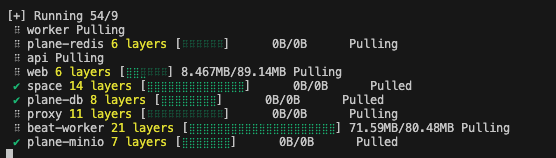
Be patient as it might take sometime based on download speed and system configuration. If all goes well, you must see something like this
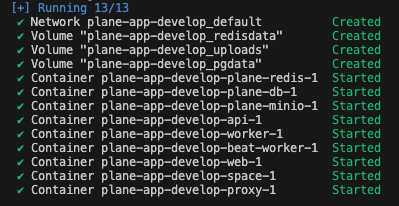
This is the confirmation that all images were downloaded and the services are up & running.
You have successfully self hosted `Plane` instance. Access the application by going to IP or domain you have configured it (e.g `https://plane.example.com:8080` or `http://[IP-ADDRESS]:8080`)
---
### Stopping the Server / Remove Stack
In case you want to make changes to `plane.env` variables, we suggest you to stop the services before doing that.
#### Docker Compose
Lets again run the `./setup.sh` command. You will again be prompted with the below options. This time select `3` to stop the sevices
```bash
Select a Action you want to perform:
1) Install (x86_64)
2) Start
3) Stop
4) Restart
5) Upgrade
6) View Logs
7) Backup Data
8) Exit
Action [2]: 3
```
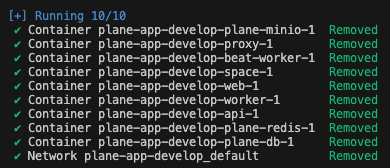
If all goes well, you must see something like this
#### Docker Swarm
Lets again run the `./setup.sh` command. You will again be prompted with the below options. This time select `2` to stop the sevices
```bash
Select an Action you want to perform:
1) Deploy Stack
2) Remove Stack
3) View Stack Status
4) Redeploy Stack
5) Upgrade
6) View Logs
7) Exit
Action [3]: 2
```
If all goes well, you will see the confirmation from docker cli
---
### Restarting the Server / Redeploy Stack
In case you want to make changes to `plane.env` variables, without stopping the server or you noticed some abnormalies in services, you can restart the services with `RESTART` / `REDEPLOY` option.
Lets again run the `./setup.sh` command. You will again be prompted with the below options. This time select `4` to restart the sevices
#### Docker Compose
```bash
Select a Action you want to perform:
1) Install (x86_64)
2) Start
3) Stop
4) Restart
5) Upgrade
6) View Logs
7) Backup Data
8) Exit
Action [2]: 4
```
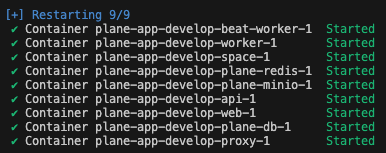
If all goes well, you must see something like this
#### Docker Swarm
```bash
1) Deploy Stack
2) Remove Stack
3) View Stack Status
4) Redeploy Stack
5) Upgrade
6) View Logs
7) Exit
Action [3]: 4
```
If all goes well, you will see the confirmation from docker cli
---
### Upgrading Plane Version
It is always advised to keep Plane up to date with the latest release.
Lets again run the `./setup.sh` command. You will again be prompted with the below options. This time select `5` to upgrade the release.
#### Docker Compose
```bash
Select a Action you want to perform:
1) Install (x86_64)
2) Start
3) Stop
4) Restart
5) Upgrade
6) View Logs
7) Backup Data
8) Exit
Action [2]: 5
```
By choosing this, it will stop the services and then will download the latest `docker-compose.yaml` and `plane.env`.
You must expect the below message
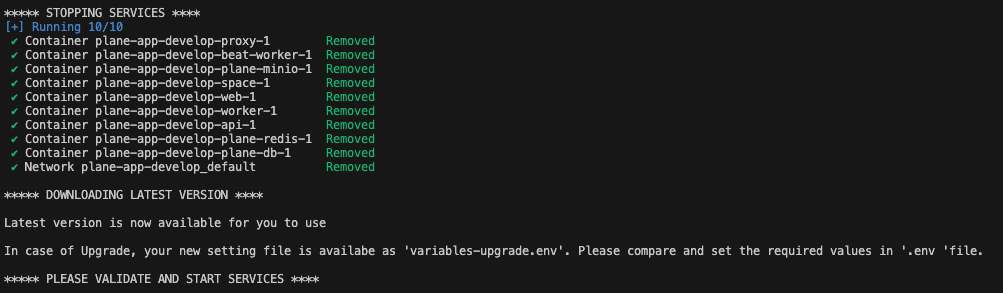
Once done, choose `8` to exit from prompt.
> It is very important for you to validate the `plane.env` for the new changes.
Once done with making changes in `plane.env` file, jump on to `Start Server`
#### Docker Swarm
Lets again run the `./setup.sh` command. You will again be prompted with the below options. This time select `5` to upgrade the release.
```bash
1) Deploy Stack
2) Remove Stack
3) View Stack Status
4) Redeploy Stack
5) Upgrade
6) View Logs
7) Exit
Action [3]: 5
```
By choosing this, it will stop the services and then will download the latest `docker-compose.yaml` and `plane.env`.
Once done, choose `7` to exit from prompt.
> It is very important for you to validate the `plane.env` for the new changes.
Once done with making changes in `plane.env` file, jump on to `Redeploy Stack`
---
### View Logs
There would a time when you might want to check what is happening inside the API, Worker or any other container.
Lets again run the `./setup.sh` command. You will again be prompted with the below options.
This time select `6` to view logs.
#### Docker Compose
```bash
Select a Action you want to perform:
1) Install (x86_64)
2) Start
3) Stop
4) Restart
5) Upgrade
6) View Logs
7) Backup Data
8) Exit
Action [2]: 6
```
#### Docker Swarm
```bash
1) Deploy Stack
2) Remove Stack
3) View Stack Status
4) Redeploy Stack
5) Upgrade
6) View Logs
7) Exit
Action [3]: 6
```
#### Service Menu Options for Logs
This will further open sub-menu with list of services
```bash
Select a Service you want to view the logs for:
1) Web
2) Space
3) API
4) Worker
5) Beat-Worker
6) Migrator
7) Proxy
8) Redis
9) Postgres
10) Minio
11) RabbitMQ
0) Back to Main Menu
Service: 3
```
Select any of the service to view the logs e.g. `3`. Expect something similar to this
```bash
api-1 | Waiting for database...
api-1 | Database available!
api-1 | Waiting for database migrations to complete...
api-1 | Waiting for database migrations to complete...
api-1 | Waiting for database migrations to complete...
api-1 | Waiting for database migrations to complete...
api-1 | Waiting for database migrations to complete...
api-1 | Waiting for database migrations to complete...
api-1 | Waiting for database migrations to complete...
api-1 | No migrations Pending. Starting processes ...
api-1 | Instance registered
api-1 | ENABLE_SIGNUP loaded with value from environment variable.
api-1 | ENABLE_EMAIL_PASSWORD loaded with value from environment variable.
api-1 | ENABLE_MAGIC_LINK_LOGIN loaded with value from environment variable.
api-1 | GOOGLE_CLIENT_ID loaded with value from environment variable.
api-1 | GITHUB_CLIENT_ID loaded with value from environment variable.
api-1 | GITHUB_CLIENT_SECRET loaded with value from environment variable.
api-1 | EMAIL_HOST loaded with value from environment variable.
api-1 | EMAIL_HOST_USER loaded with value from environment variable.
api-1 | EMAIL_HOST_PASSWORD loaded with value from environment variable.
api-1 | EMAIL_PORT loaded with value from environment variable.
api-1 | EMAIL_FROM loaded with value from environment variable.
api-1 | EMAIL_USE_TLS loaded with value from environment variable.
api-1 | EMAIL_USE_SSL loaded with value from environment variable.
api-1 | OPENAI_API_KEY loaded with value from environment variable.
api-1 | GPT_ENGINE loaded with value from environment variable.
api-1 | UNSPLASH_ACCESS_KEY loaded with value from environment variable.
api-1 | Checking bucket...
api-1 | Bucket 'uploads' does not exist. Creating bucket...
api-1 | Bucket 'uploads' created successfully.
api-1 | Public read access policy set for bucket 'uploads'.
api-1 | Cache Cleared
api-1 | [2024-05-02 03:56:01 +0000] [1] [INFO] Starting gunicorn 21.2.0
api-1 | [2024-05-02 03:56:01 +0000] [1] [INFO] Listening at: http://0.0.0.0:8000 (1)
api-1 | [2024-05-02 03:56:01 +0000] [1] [INFO] Using worker: uvicorn.workers.UvicornWorker
api-1 | [2024-05-02 03:56:01 +0000] [25] [INFO] Booting worker with pid: 25
api-1 | [2024-05-02 03:56:03 +0000] [25] [INFO] Started server process [25]
api-1 | [2024-05-02 03:56:03 +0000] [25] [INFO] Waiting for application startup.
api-1 | [2024-05-02 03:56:03 +0000] [25] [INFO] ASGI 'lifespan' protocol appears unsupported.
api-1 | [2024-05-02 03:56:03 +0000] [25] [INFO] Application startup complete.
```
To exit this, use `CTRL+C` and then you will land on to the main-menu with the list of actions.
Similarly, you can view the logs of other services.
---
### Backup Data (Docker Compose)
There would a time when you might want to backup your data from docker volumes to external storage like S3 or drives.
Lets again run the `./setup.sh` command. You will again be prompted with the below options. This time select `7` to Backup the data.
```bash
Select a Action you want to perform:
1) Install (x86_64)
2) Start
3) Stop
4) Restart
5) Upgrade
6) View Logs
7) Backup Data
8) Exit
Action [2]: 7
```
In response, you can find the backup folder
```bash
Backing Up plane-app_pgdata
Backing Up plane-app_redisdata
Backing Up plane-app_uploads
Backup completed successfully. Backup files are stored in /....../plane-app/backup/20240502-1120
```
---
### Restore Data (Docker Compose)
When you want to restore the previously backed-up data, follow the instructions below.
1. Make sure that Plane-CE is installed, started, and then stopped. This ensures that the Docker volumes are created.
1. Download the restore script using the command below. We suggest downloading it in the same folder as `setup.sh`.
```bash
curl -fsSL -o restore.sh https://github.com/makeplane/plane/releases/latest/download/restore.sh
chmod +x restore.sh
```
1. Execute the command below to restore your data.
```bash
./restore.sh
```
As an example, for a backup folder `/opt/plane-selfhost/plane-app/backup/20240722-0914`, expect the response below:
```bash
--------------------------------------------
____ _ /////////
| _ \| | __ _ _ __ ___ /////////
| |_) | |/ _` | '_ \ / _ \ ///// /////
| __/| | (_| | | | | __/ ///// /////
|_| |_|\__,_|_| |_|\___| ////
////
--------------------------------------------
Project management tool from the future
--------------------------------------------
Found /opt/plane-selfhost/plane-app/backup/20240722-0914/pgdata.tar.gz
.....Restoring plane-app_pgdata
.....Successfully restored volume plane-app_pgdata from pgdata.tar.gz
Found /opt/plane-selfhost/plane-app/backup/20240722-0914/redisdata.tar.gz
.....Restoring plane-app_redisdata
.....Successfully restored volume plane-app_redisdata from redisdata.tar.gz
Found /opt/plane-selfhost/plane-app/backup/20240722-0914/uploads.tar.gz
.....Restoring plane-app_uploads
.....Successfully restored volume plane-app_uploads from uploads.tar.gz
Restore completed successfully.
```
1. Start the Plane instance using `./setup.sh start`.
---
### Restore for Commercial Air-Gapped (Docker Compose)
When you want to restore the previously backed-up data on Plane Commercial Air-Gapped version, follow the instructions below.
1. Download the restore script using the command below
```bash
curl -fsSL -o restore-airgapped.sh https://github.com/makeplane/plane/releases/latest/download/restore-airgapped.sh
chmod +x restore-airgapped.sh
```
1. Copy the backup folder and the `restore-airgapped.sh` to `Commercial Airgapped Edition` server
1. Make sure that Plane Commercial (Airgapped) is extracted and ready to get started. In case it is running, you would need to stop that.
1. Execute the command below to restore your data.
```bash
./restore-airgapped.sh
```
1. After restoration, you are ready to start Plane Commercial (Airgapped) will all your previously saved data.
---
Upgrading from v0.13.2 to v0.14.x
This is one time activity for users who are upgrading from v0.13.2 to v0.14.0
As there has been significant changes to Self Hosting process, this step mainly covers the data migration from current (v0.13.2) docker volumes from newly created volumes
> Before we begin with migration, make sure your v0.14.0 was started and then stopped. This is required to know the newly created docker volume names.
Begin with downloading the migration script using below command
```
curl -fsSL -o migrate.sh https://raw.githubusercontent.com/makeplane/plane/master/deploy/selfhost/migration-0.13-0.14.sh
chmod +x migrate.sh
```
Now run the `./migrate.sh` command and expect the instructions as below
```
******************************************************************
This script is solely for the migration purpose only.
This is a 1 time migration of volume data from v0.13.2 => v0.14.x
Assumption:
1. Postgres data volume name ends with _pgdata
2. Minio data volume name ends with _uploads
3. Redis data volume name ends with _redisdata
Any changes to this script can break the migration.
Before you proceed, make sure you run the below command
to know the docker volumes
docker volume ls -q | grep -i "_pgdata"
docker volume ls -q | grep -i "_uploads"
docker volume ls -q | grep -i "_redisdata"
*******************************************************
Given below list of REDIS volumes, identify the prefix of source and destination volumes leaving "_redisdata"
---------------------
plane-app_redisdata
v0132_redisdata
Provide the Source Volume Prefix :
```
**Open another terminal window**, and run the mentioned 3 command. This may be different for users who have changed the volume names in their previous setup (v0.13.2)
For every command you must see 2 records something like shown in above example of `redisdata`
To move forward, you would need PREFIX of old setup and new setup. As per above example, `v0132` is the prefix of v0.13.2 and `plane-app` is the prefix of v0.14.0 setup
**Back to original terminal window**, _Provide the Source Volume Prefix_ and hit ENTER.
Now you will be prompted to _Provide Destination Volume Prefix_. Provide the value and hit ENTER
```
Provide the Source Volume Prefix : v0132
Provide the Destination Volume Prefix : plane-app
```
In case the suffixes are wrong or the mentioned volumes are not found, you will receive the error shown below. The image below displays an error for source volumes.
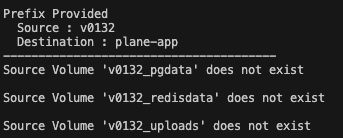
In case of successful migration, it will be a silent exit without error.
Now its time to restart v0.14.0 setup.